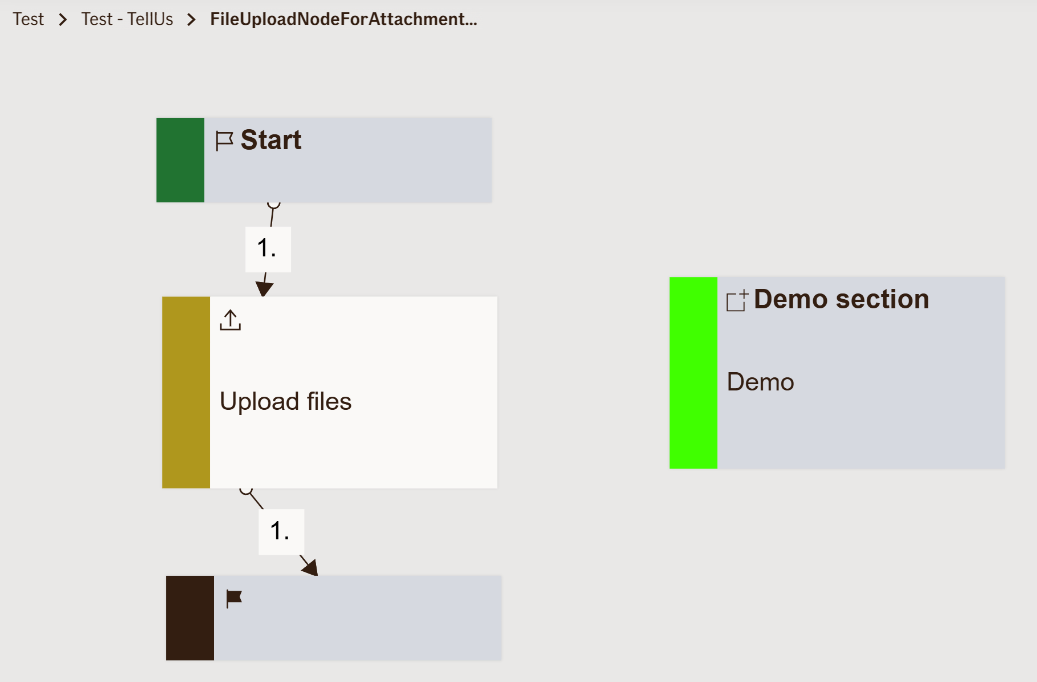
File Upload Node For Attachment Viewer
The File Upload Attachment Viewer Node allows users to upload files directly to the Attachment Viewer while providing metadata along with each file.
It ensures that uploaded documents are properly restricted by access roles, linked to specific business areas, and associated with relevant metadata such as customer type, line of business, and policy type.
Use Case
Use this node when:
- Files need to be uploaded with structured metadata to the Attachment Viewer.
- Access to uploaded files must be restricted to specific Azure AD groups or business roles.
- Files are part of insurance claims, policies, or other regulated processes where metadata and access control are critical.
Example scenarios:
- Uploading claim-related documents (images, PDFs) directly into a policy’s attachment viewer with metadata such as claim number, policy type, and line of business.
- Ensuring only authorized personnel can access uploaded files.
- Providing immediate access to successfully uploaded files via AttachmentViewerLink for review.
This node differs from the standard FileUploadNode as it integrates metadata and uploads directly to the attachment viewer rather than temporary storage.
UI Examples
- TellUs
- WebChat
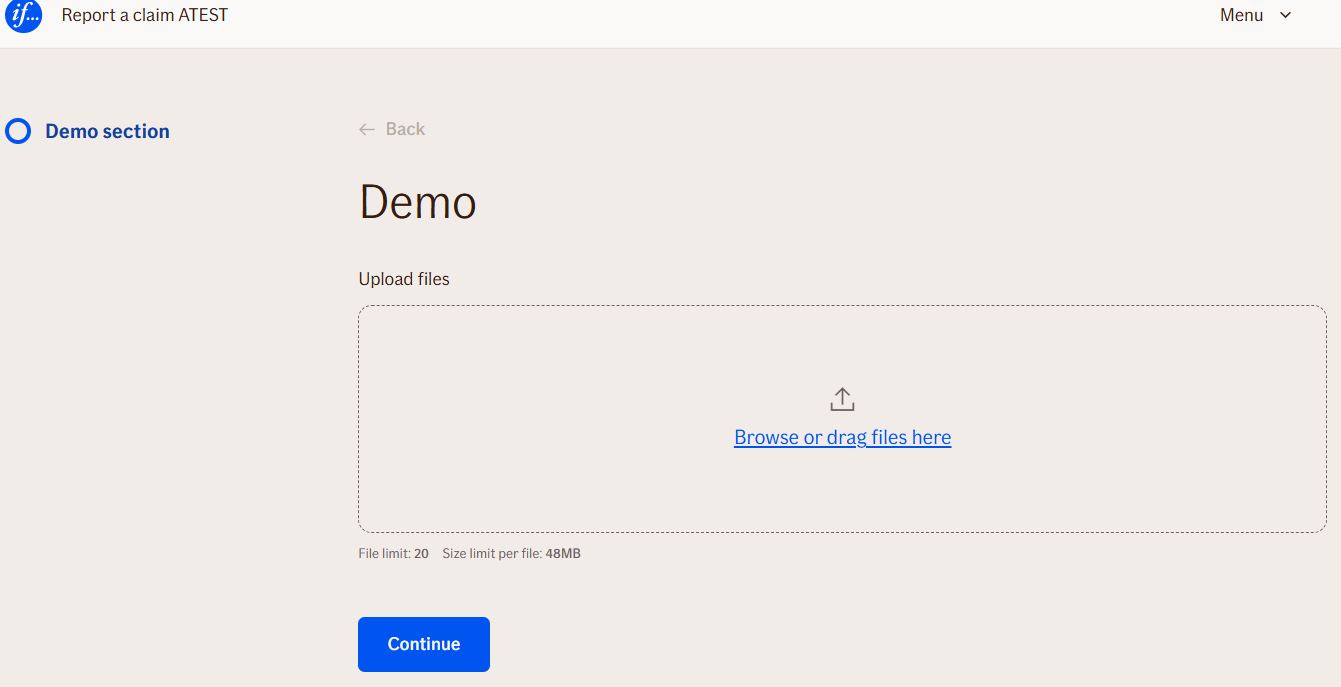
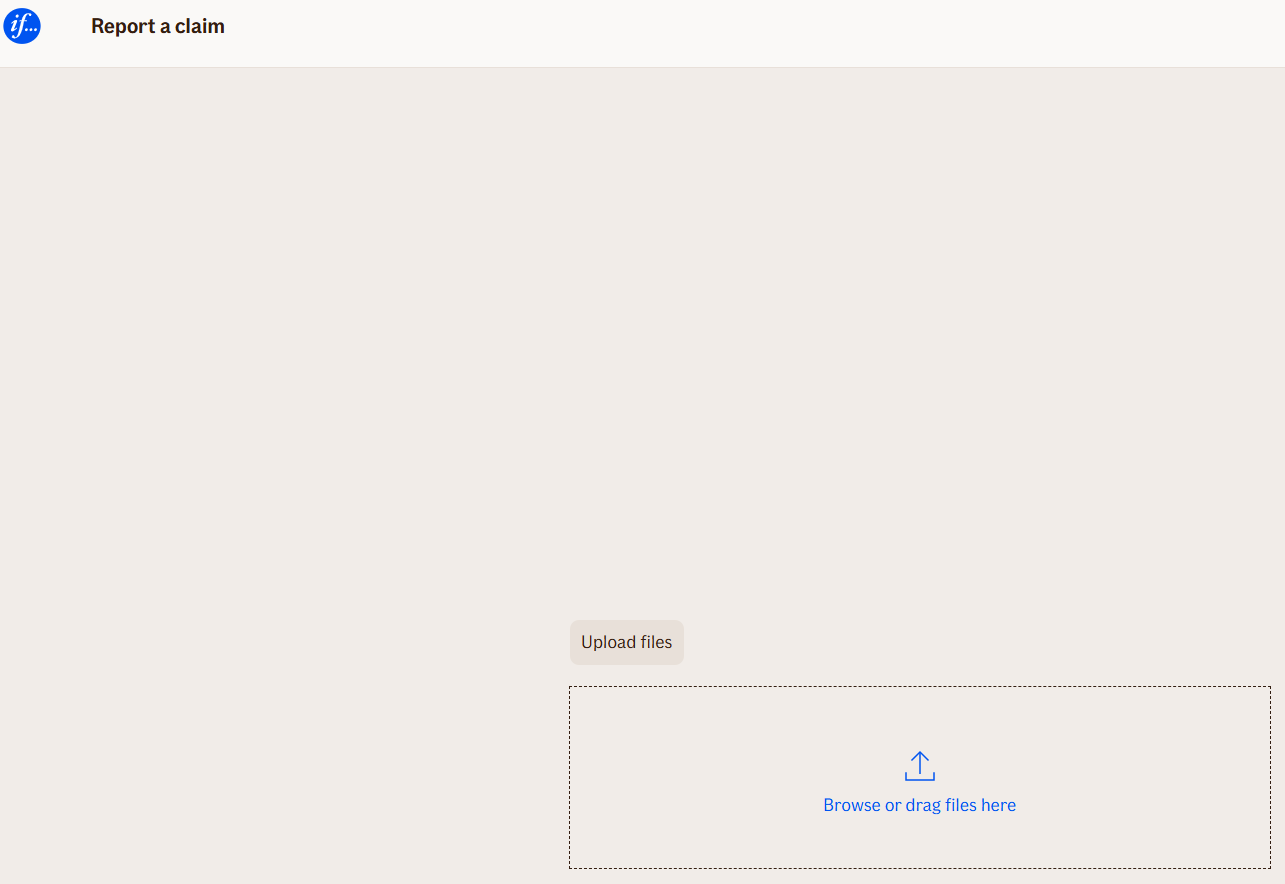
Behavior
- Blocking: Yes — the user must complete upload according to validation rules to continue.
- Requires user input: Yes.
- If no input is provided: Default validation messages are shown if
isRequiredis true. - Outputs variables: Yes — includes links, uploaded files, and error information for further flow logic.
- Validations enforced: File type, size, count, and required selection. Upload success/failure is tracked in output variables.
Node Metadata
| Property | Description |
|---|---|
| Node class | FileUploadNodeForAttachmentViewer |
| MessageType | 9 |
| CanBeEdited | False |
| CanBeProcessedOnce | False |
| RequireUserResponse | Yes |
Input Properties
| Property | Description |
|---|---|
| AccessId | ID provided by the development team to restrict access to uploaded files to specific AD groups or business roles. Only authorized users can access the files. |
| ClaimNumberRegex | (Optional) Regular expression used to validate claim numbers when files are uploaded. Ensure regex is correct before use. |
| AclName | Optional Access Control List name. If not provided, ACL is calculated based on LineOfBusiness, ContentOwner, and Country. |
| ContentOwner | Internal organization owning the content.
|
| Country | Country code where the file upload is relevant.
|
| CustomerType | Type of customer, obtained from Customer ID Type Codes. Get correct value under Customer ID Type Codes section from Types of Case Identifiers.
|
| LineOfBusiness | Line of business associated with the uploaded file (e.g., motor insurance, personal insurance). Must match expected casing. Get correct values from HERE. |
| PolicyType | Policy type associated with the uploaded file. Get correct value under Contract ID Type Codes section from Types of Case Identifiers.
|
| UploadDuringSubmission | Determines whether files are uploaded immediately during submission (true) or deferred (false).
|
| HeaderText | Text shown in the top-left corner of the file upload pop-up modal.
|
| uploadFilesButtonText | Text of the upload button in the modal.
|
| uploadInProgressButtonText | Text of the upload button while upload is in progress.
|
| browseFilesButtonText | Text for the file browse button in mobile view.
|
| dropZoneContainerText | Text displayed in the file drag-and-drop area.
|
| uploadFailedErrorMessage | Message displayed if the backend upload fails.
|
| allowedFileExtensions | List of file extensions allowed for upload.
|
| fileTypeErrorMessage | Message shown when an unsupported file type is uploaded.
|
| maxFileSizeInBytes | Maximum size for each file.
|
| fileSizeErrorMessage | Message shown if a file exceeds the maximum size.
|
| fileEmptyErrorMessage | Message shown if an uploaded file is empty.
|
| maxFileCount | Maximum number of files allowed per upload.
|
| fileCountErrorMessage | Message shown when exceeding
|
| defaultValidationMessage | The default error message shown when the input is invalid or missing. This is used if no custom validation message is provided.
|
| sectionId | Groups this node visually under a specific section in TellUs. When multiple nodes share the same |
| defaultValue | The initial value that is prefilled into the input field when the node is rendered. Useful for suggesting defaults or pre-populating known data. |
| isRequired | Determines whether the user must provide a value before continuing. If set to
|
| isRequiredValidationMessage | The error message shown when a required field is left empty. This overrides the default validation message when
|
Output Properties
| Property | Description |
|---|---|
| AttachmentViewerLink | URL linking to successfully uploaded files in the attachment viewer. |
| FailedFileList | List of files that failed to upload. |
| ErrorMessageList | List of error messages for failed uploads, including translated messages based on locale. |
| ErrorCodeList | List of error codes corresponding to upload failures. |
| UploadedFiles | (Webchat only) List of all files successfully uploaded. |
| UploadedFileList | (Webchat only) Alias for |
| UploadedFileData | Detailed metadata for each uploaded file, including ContentOwner, LineOfBusiness, PolicyType, and CustomerType. |
| displayValue | User-facing representation of uploaded file names for display purposes. |
Editor Example
This link opens a prebuilt flow using this node in context. You can inspect how it's configured, how it's connected, and how it behaves in a real editor environment.