Message Node
The MessageNode displays a static message to the user during the flow. It does not require any user input and automatically continues to the next node after rendering.
In WebChat, the message appears as a chatbot bubble. In TellUs, it renders as inline text using a <span>. This node is purely informational and does not affect the flow logic.
Use Case
Use the MessageNode when you need to:
- Show instructions or helpful text to the user
- Provide confirmations or status updates
- Introduce or separate sections in a flow
- Guide the user without interrupting the flow
It's especially useful before an input node or after a backend action to explain what just happened or what’s next.
UI Examples
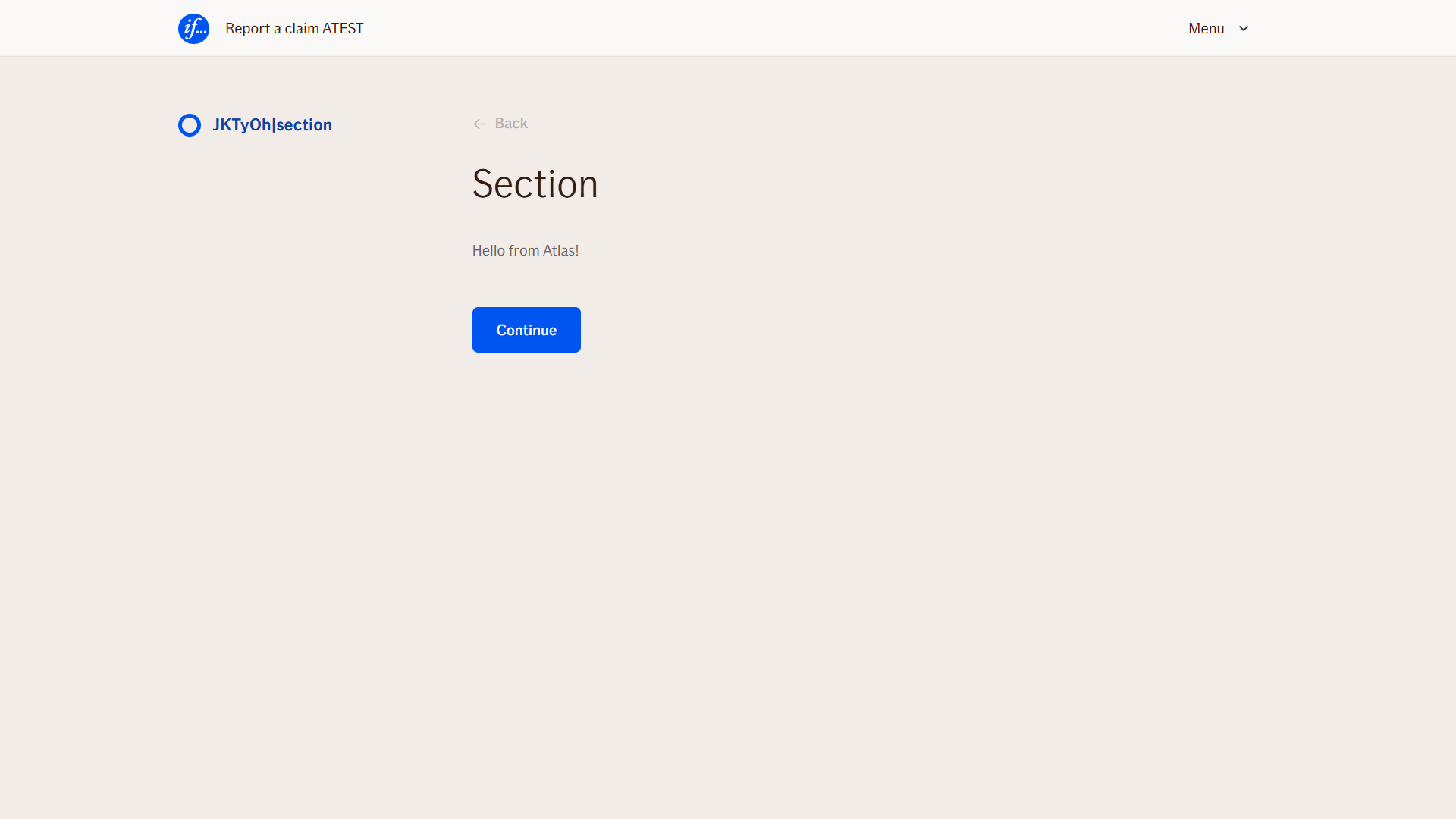
- TellUs
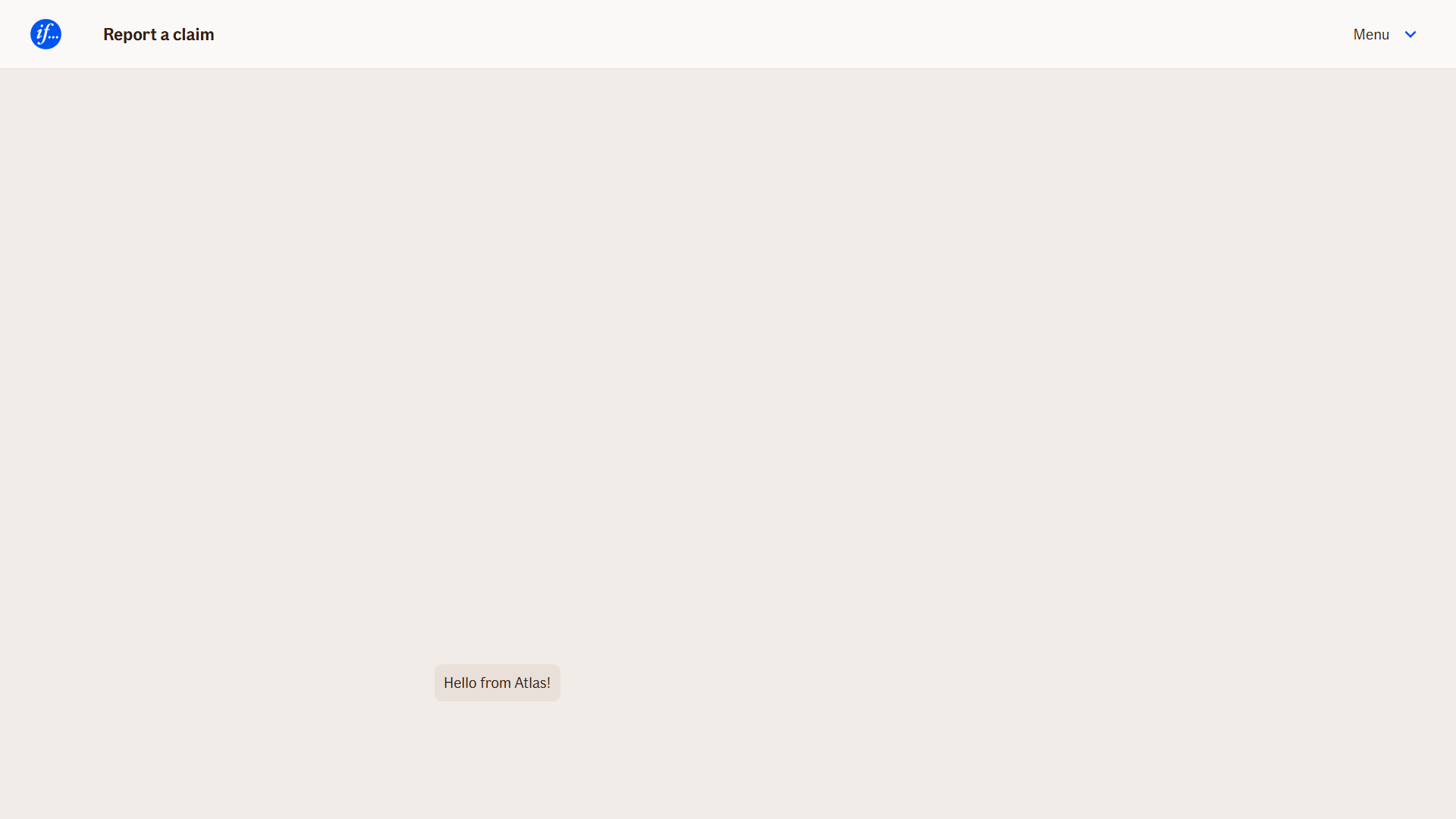
- WebChat
Node is shown as inline text.
Node is shown as a bot message bubble.
Behavior
- Non-blocking: The node does not wait for user interaction
- Automatically advances to the next node after being displayed
- Renders differently depending on UI:
- WebChat: as a bot message bubble
- TellUs: as inline text
- No outputs: this node produces no variables or user responses
- Can be reused in multiple places in a flow without side effects
Node Metadata
| Property | Description |
|---|---|
| Node class | MessageNode |
| MessageType | 1 |
| CanBeEdited | False |
| CanBeProcessedOnce | False |
| RequireUserResponse | YesWithoutAwaiting |
Input Properties
| Property | Description |
|---|---|
| defaultValidationMessage | The default error message shown when the input is invalid or missing. This is used if no custom validation message is provided.
|
| sectionId | Groups this node visually under a specific section in TellUs. When multiple nodes share the same |
| defaultValue | The initial value that is prefilled into the input field when the node is rendered. Useful for suggesting defaults or pre-populating known data. |
| isRequired | Determines whether the user must provide a value before continuing. If set to
|
| isRequiredValidationMessage | The error message shown when a required field is left empty. This overrides the default validation message when
|
Output Properties
No output properties.
Editor Example
This link opens a prebuilt flow using this node in context. You can inspect how it's configured, how it's connected, and how it behaves in a real editor environment.
Learn how to create a message node in Atlas Editor with this guide
Go to atest.editor.atlas.ifext.biz
1. Right-click anywhere
Navigate to the desired section.
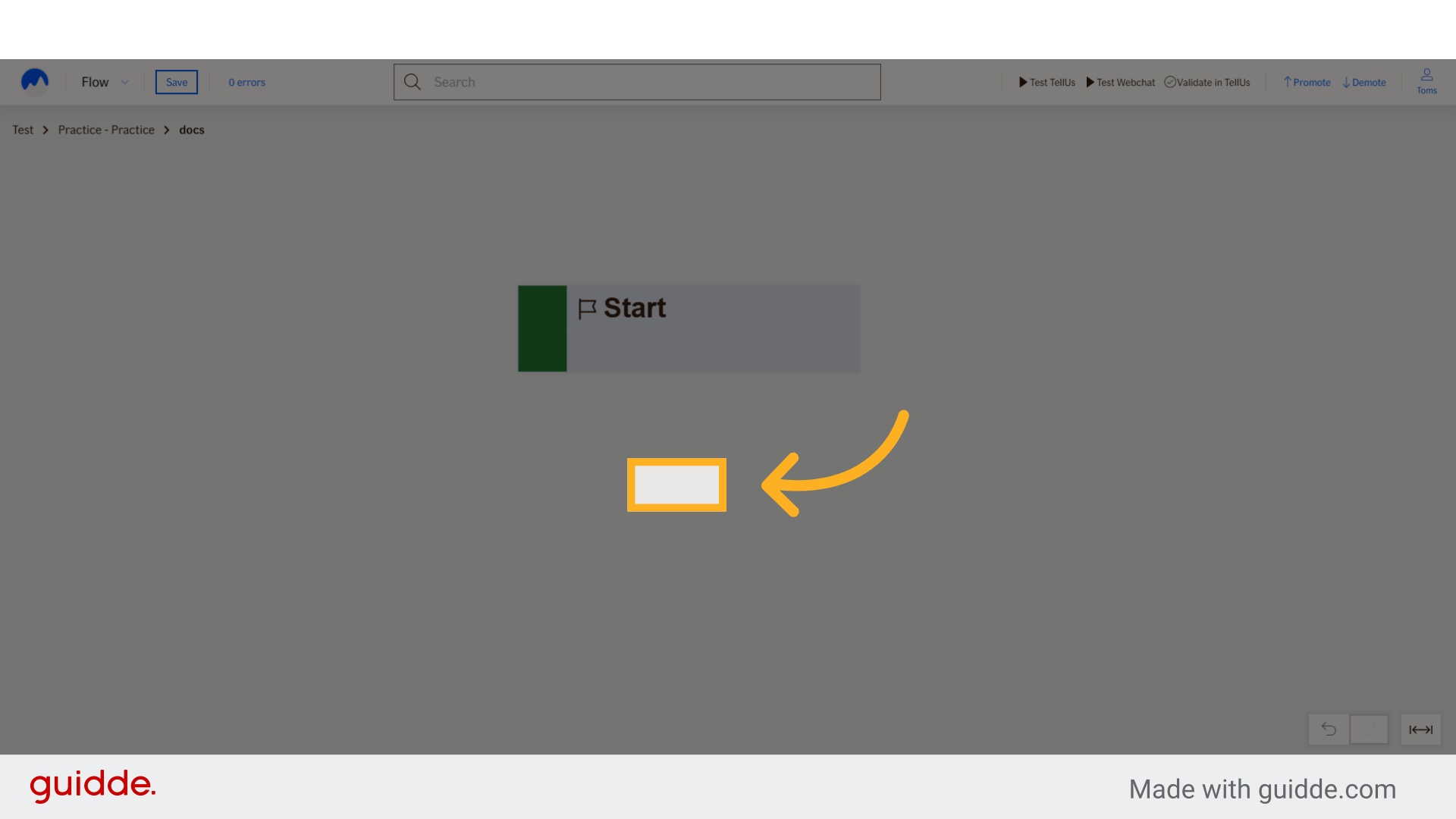
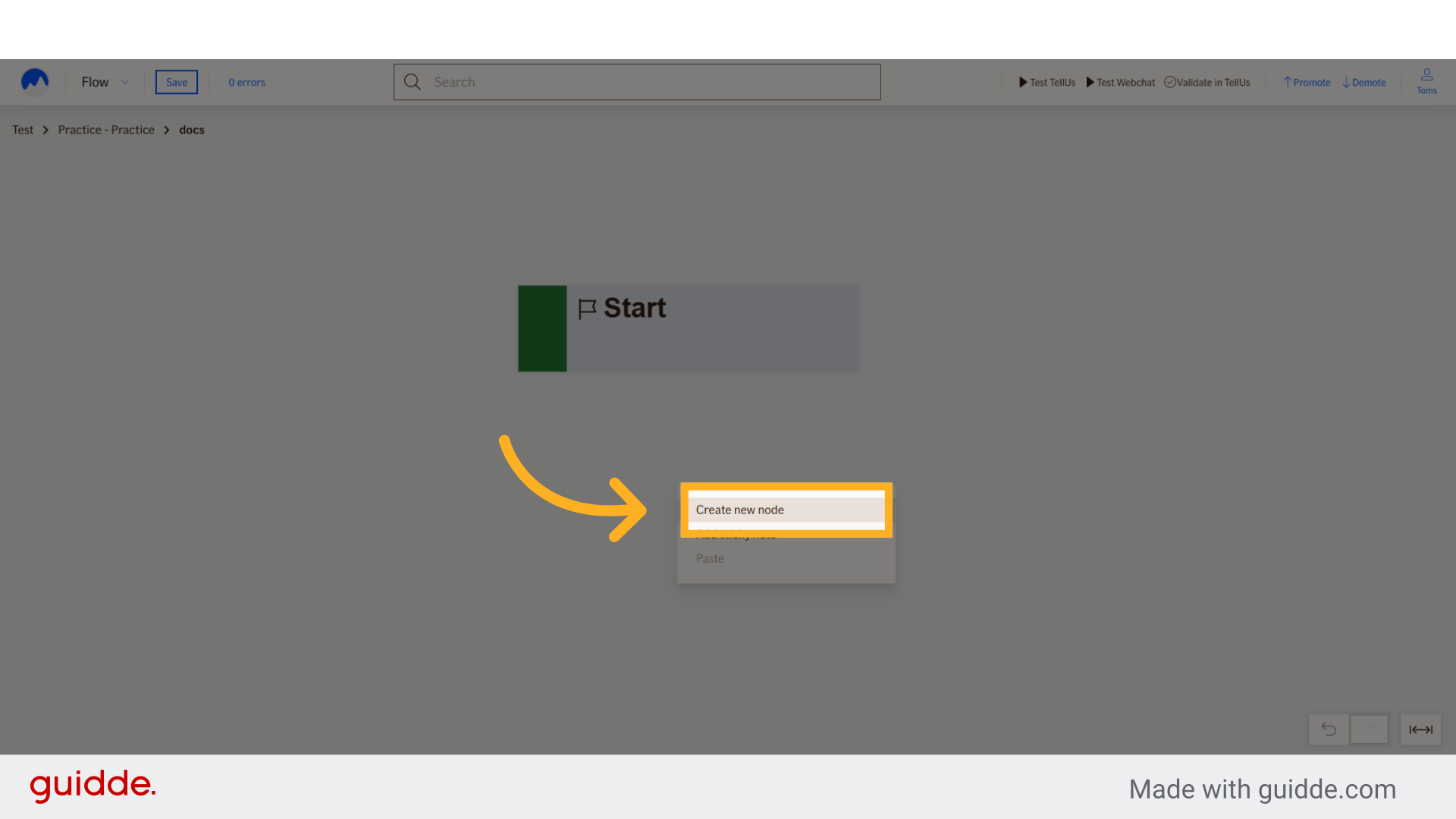
2. Click "Create new node"
Initiate a new node creation.
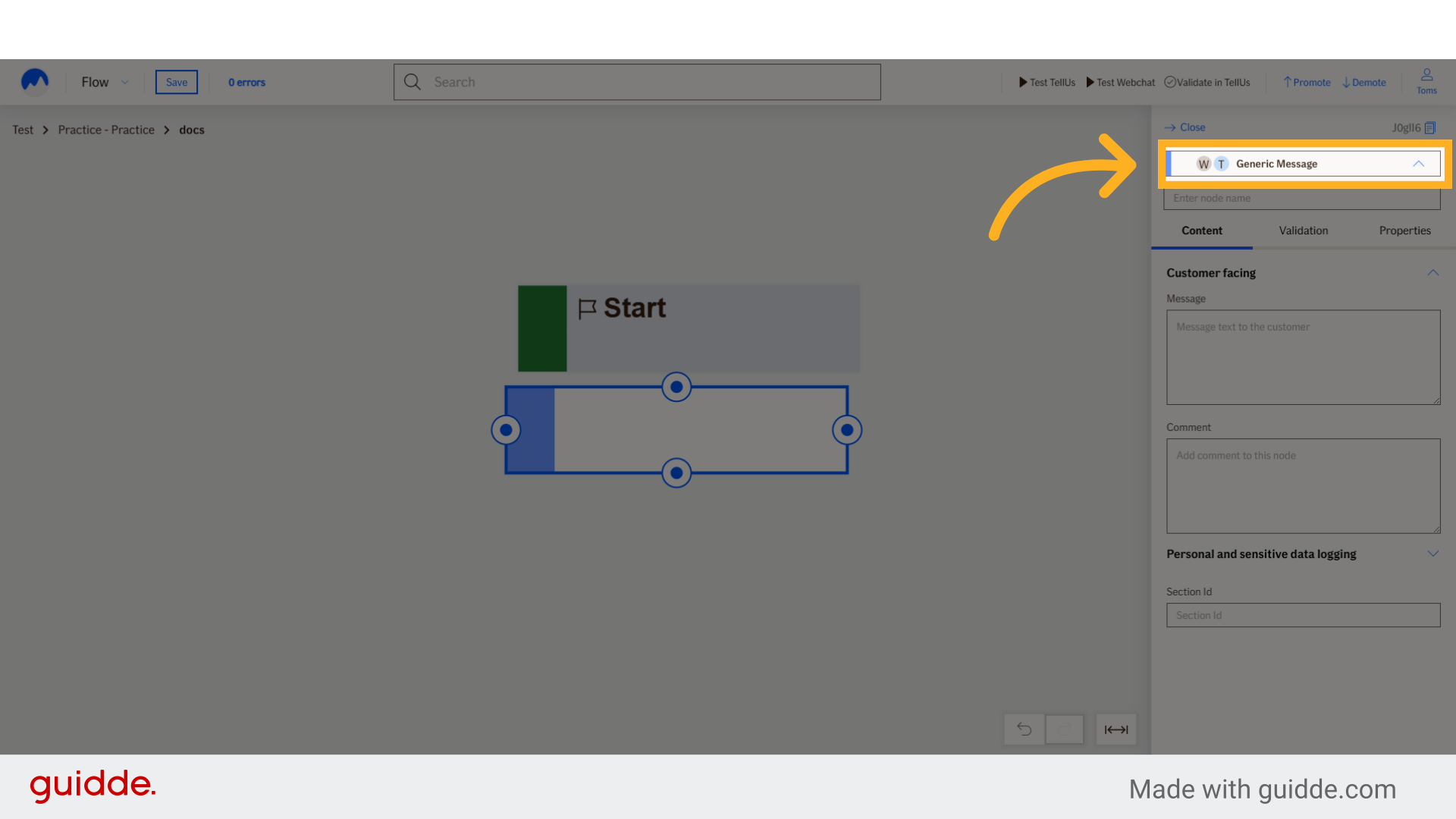
3. Click "Generic Message"
Choose the generic message type.
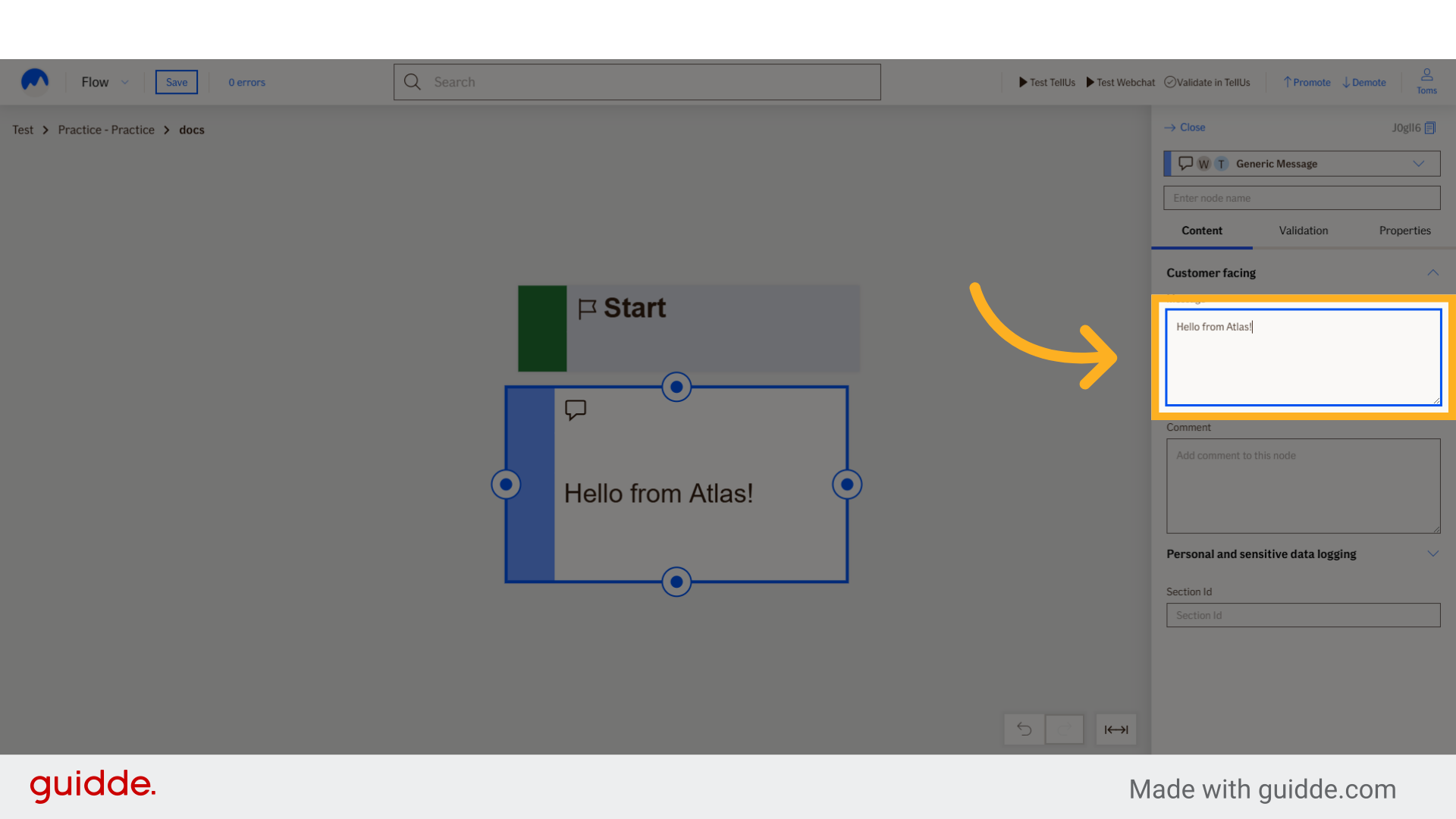
4. Fill "Hello from Atlas!"
Input the message content.
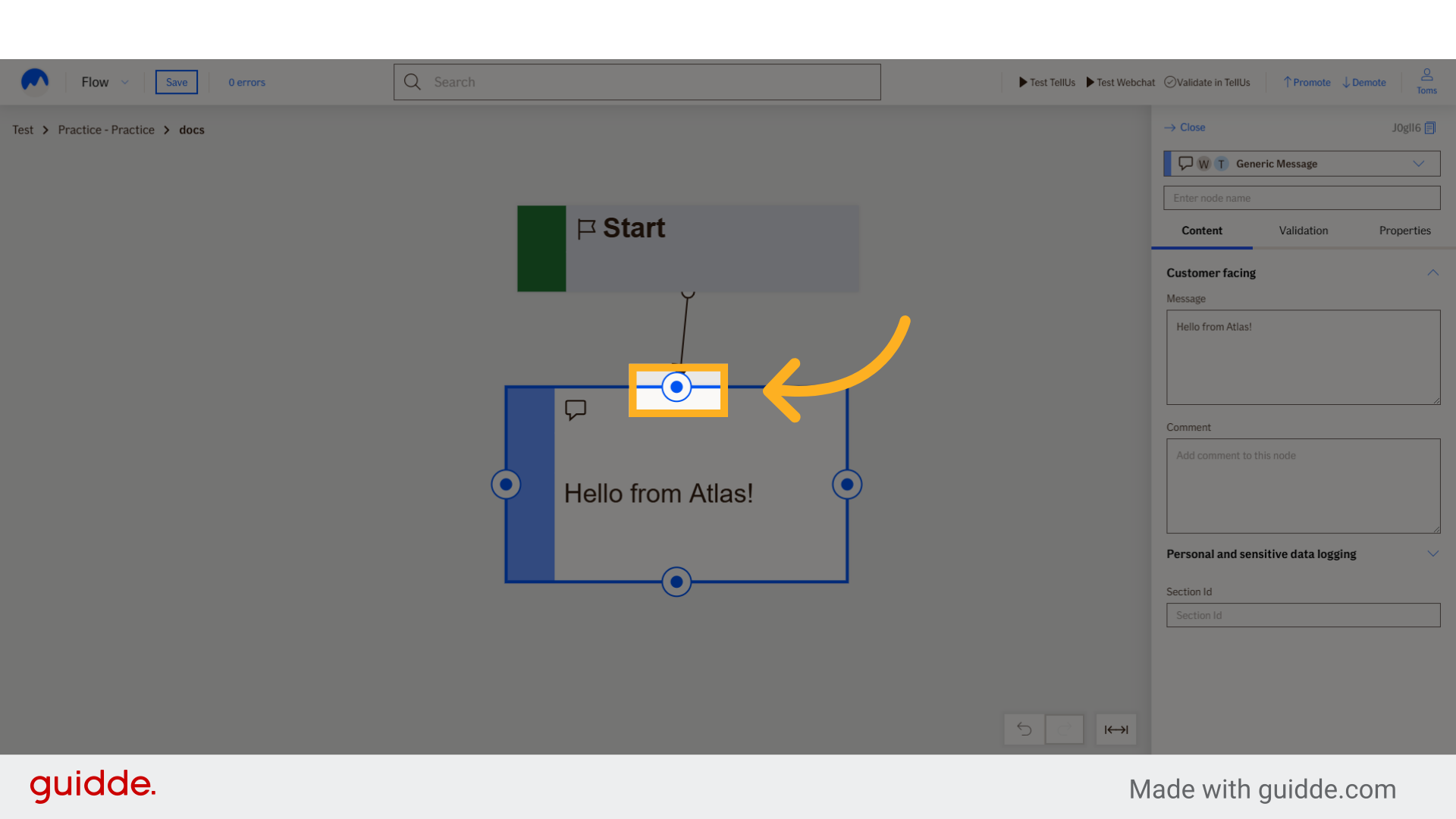
5. Click here
Start connecting the node
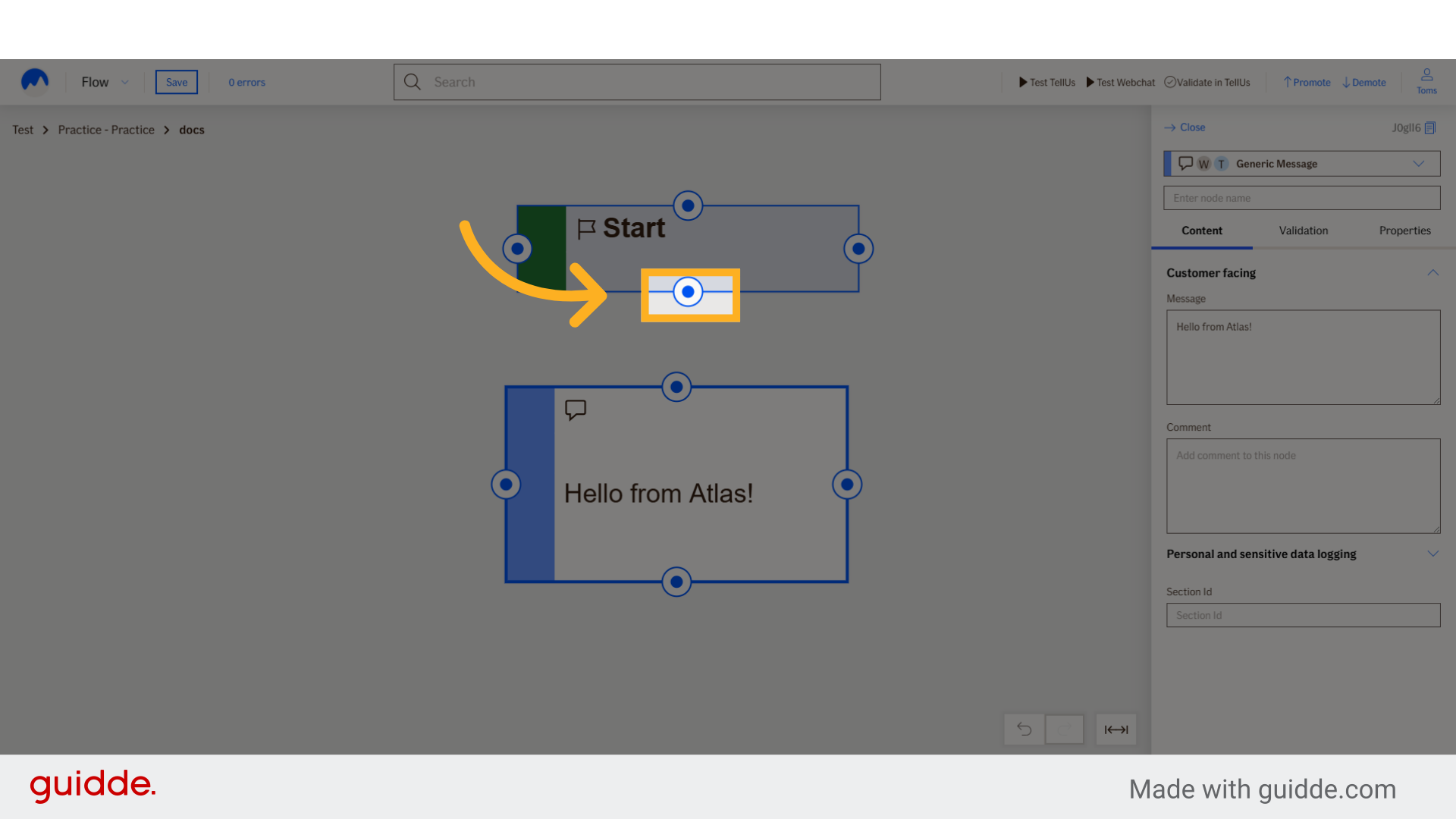
6. Click here
Finish the connection
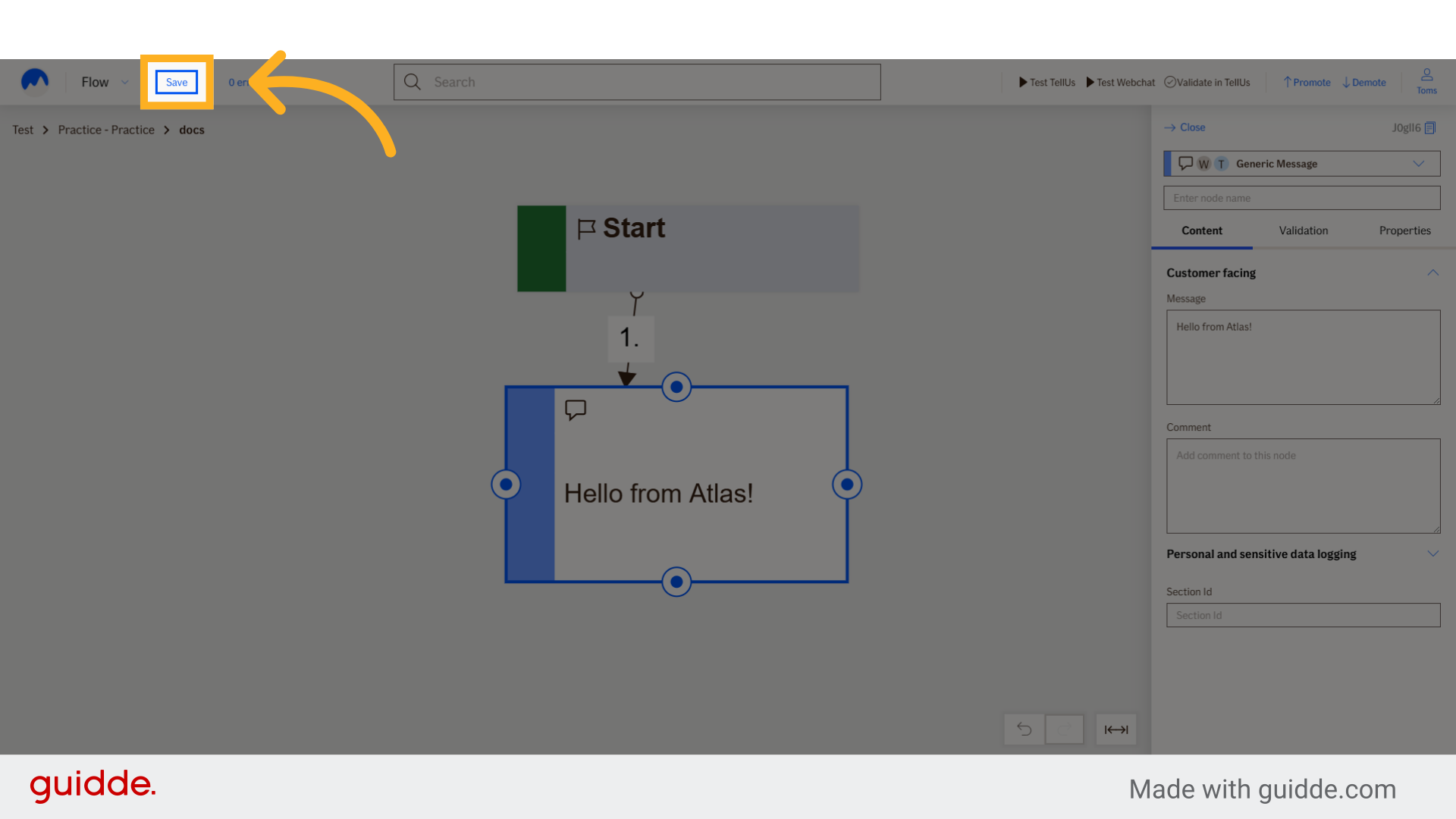
7. Click "Save"
Save the newly created message node.
This guide covered the process of creating a message node in Atlas Editor.